From time to time, you may want to freshen up the content on your homepage. And we get it — it can be tough to remember where to add every little detail.
In this post, we’ll outline how to customize your Scholar homepage so it’s the perfect introduction to your cause. If you’re not using the Scholar theme, learn how to adjust the homepage on other themes.
To update anything on your website, you’ll first need to be logged in to access the back end. Using the admin menu, navigate to the “Pages” section and click “Home — Front Page”.

How the Homepage Works
Your homepage uses the block editor. You can add, remove and rearrange most blocks, with some exceptions.
These homepage blocks look and function differently from blocks you’ll find on other pages and posts. This allows your homepage to have a more unique look.
Use the labeled photo and links below to find instructions for each homepage block.
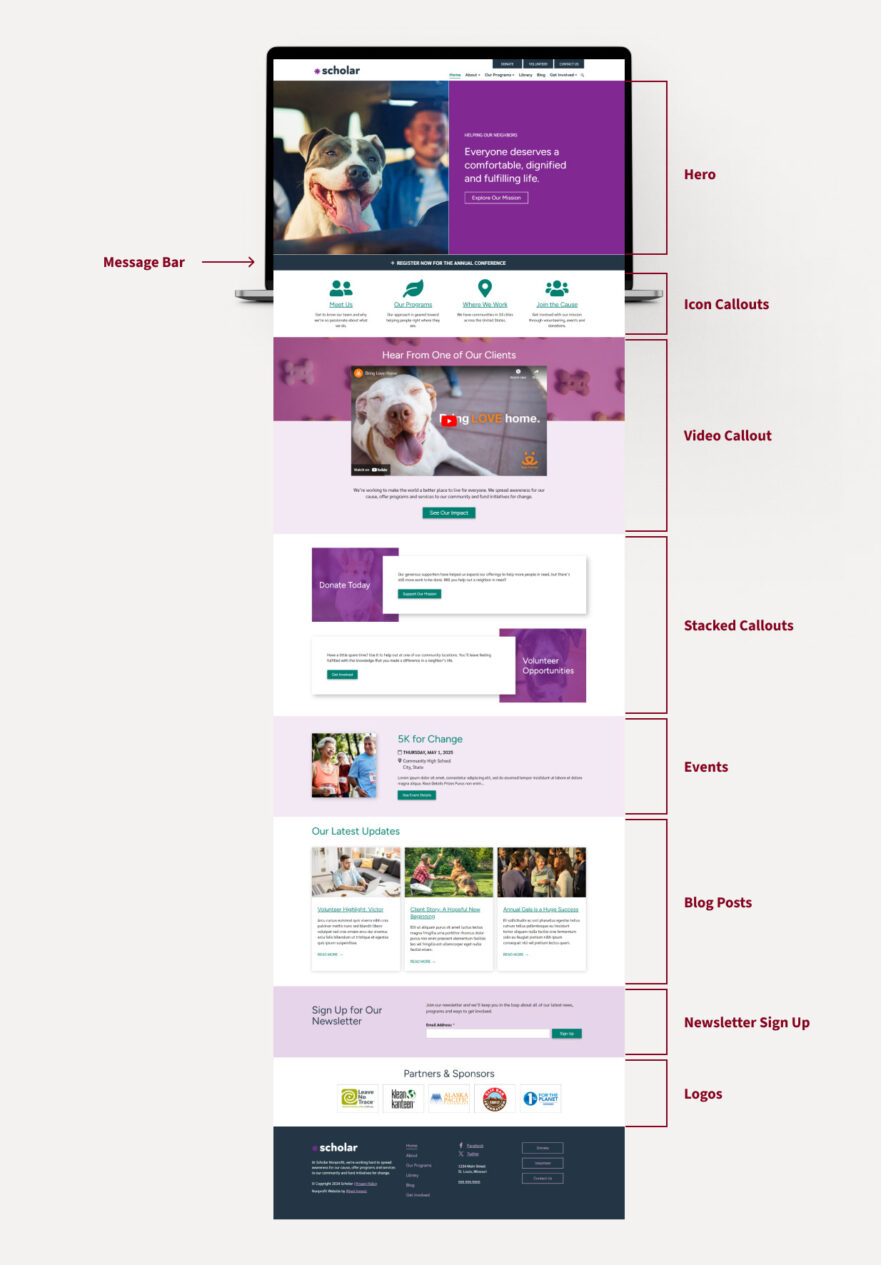
Jump Ahead To
Update the Hero Block
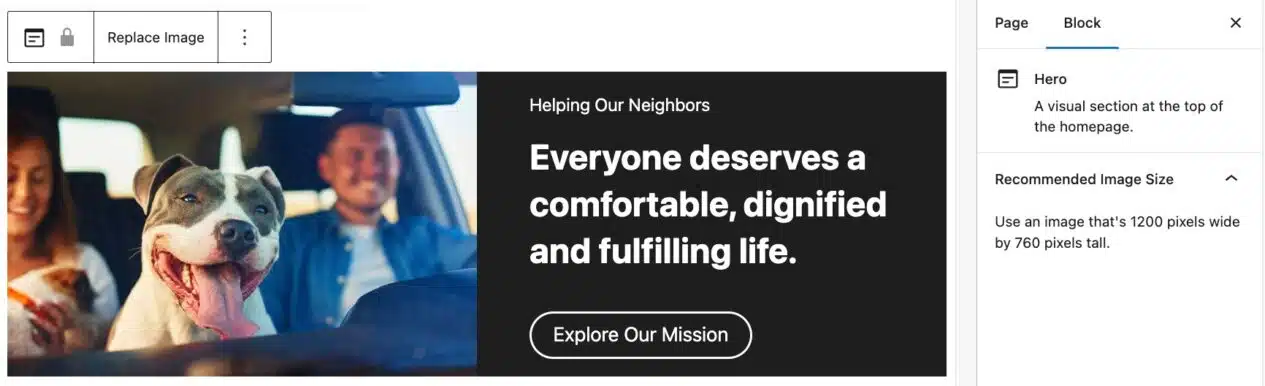
The Hero block is the large image at the top of your homepage. While you can customize many elements of this block, it is not possible to move or delete this block on your homepage.
Replace the Image
- Crop your image to 1200 pixels wide by 760 pixels tall.
- Click “Replace Image” within the block toolbar and either upload your desired homepage hero image or select it from the Media Library.
Update the Headline
- Place your cursor where it says “Add a heading…” or “Helping Our Neighbors”, or just select and delete the existing text to enter your new headline.
- Try to keep this text as short as possible to ensure your headline is quick and easy for visitors to read.
- If you decide to leave this space blank, it won’t show up on the front end.
Update the Description
- Place your cursor where it says “Add a description” or “Everyone deserves a comfortable, dignified and fulfilling life” or just select and delete the existing text to enter your new description.
- Try to keep this text as short as possible to ensure your headline is quick and easy for visitors to read.
- If you decide to leave this space blank, it won’t show up on the front end.
Add a Button
- Add button text to highlight an important call to action.
- Enter the URL where you want the button to direct users.
- If you don’t want the button to show up on the front end, just leave it empty.
- The button also won’t show up if the URL field is empty.
Update the Message Bar Block
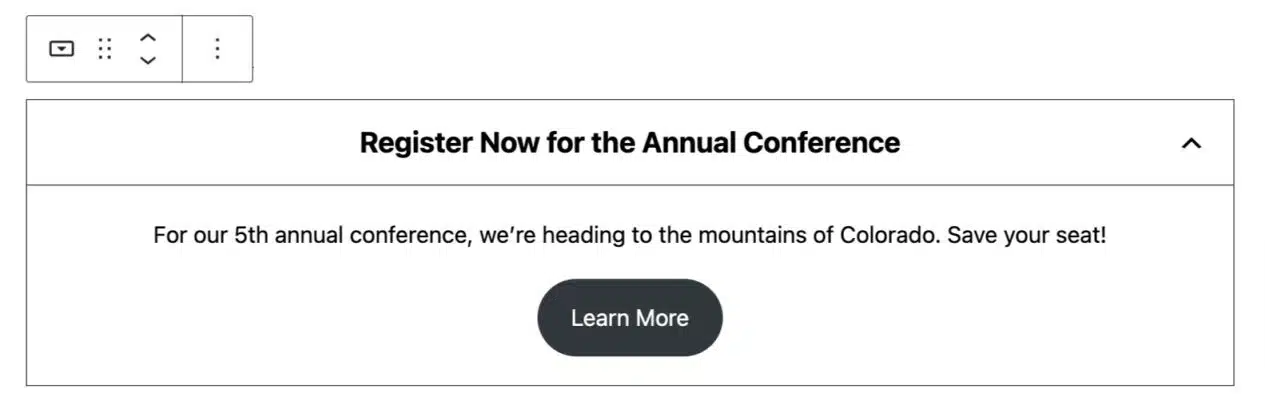
This block allows you to display an announcement in an expandable banner and can be added only once to your homepage. To customize the Message Bar block you can:
- Add a brief heading.
- Add a short description.
- Customize the button text.
- If you don’t want the button to show up on the front end, just leave it empty.
- Add the URL of the page you’d like to link visitors to.
Update the Icon Callouts Block
This block allows you to display icons with text in various layouts using two different alignment options: centered and left icon. You can move this block, delete it or add it to your homepage multiple times.
You can choose to have as few as one column (spanning full width) or as many as four. The number of columns you choose will impact the available alignment options. For example, an Icon callout block with three or more callouts will only allow center alignment.

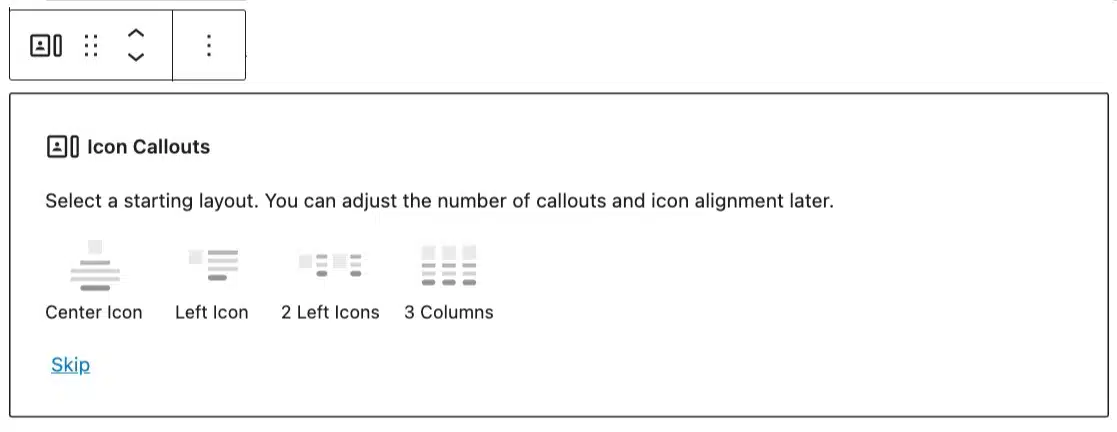
- Use the block inserter to add an Icon Callouts block and select a layout that fits your needs.
- You’ll be able to choose from a variety of common layout options. If you don’t see one you’d like, you can click “Skip” at the bottom of the block and customize it later using the block toolbar.
- Make sure the Icon Callouts parent block is selected and use the slider under “Callouts” in the sidebar block settings to specify the number of columns.
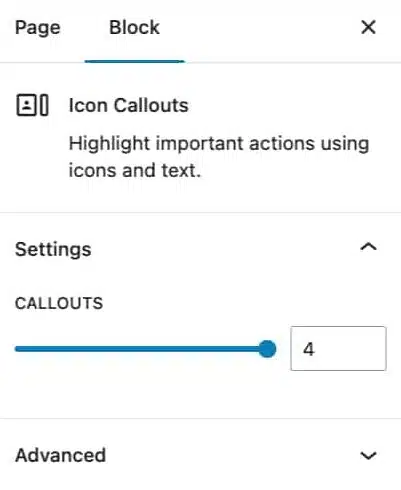
Once you determine the number of columns you’d like, you can customize each callout. To customize a callout:
- Replace the icon by clicking on the current one and searching for a new one from the list of available icons that opens up.
- Add a brief heading.
- You can add a link to the heading, which will automatically link the icon as well.
- Add a short description.
- Customize the button text.
- If you don’t want the button to show up on the front end, just leave it empty.
- Add the URL of the page you’d like to link visitors to.
To remove a column from the Icon Callouts block:
- Select the column you’d like to remove.
- Click the three vertical dots within the block toolbar for more options.
- Select “Delete”.
- Repeat as necessary.
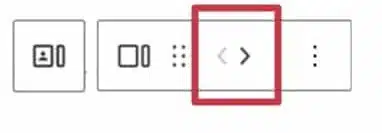
To rearrange the columns, use the toolbar’s left and right arrows.
Update the Video Callout Block
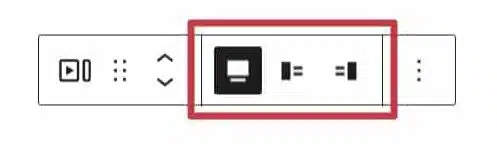
The Video Callout block allows you to highlight a video and text in various layouts using three different alignment options: centered, left video, and right video. You can move this block, delete it or add it to your homepage multiple times.
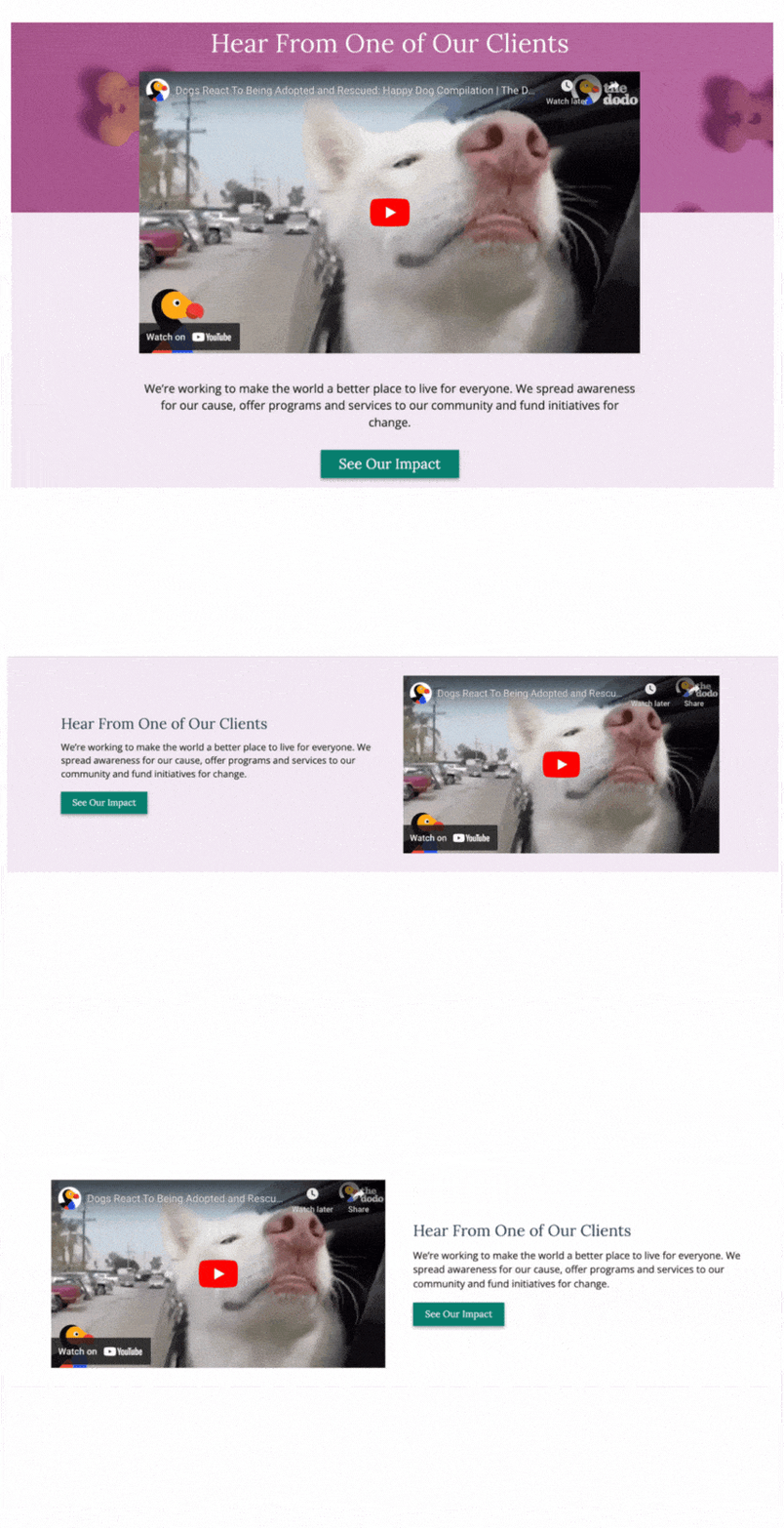
Choose your preferred alignment from the block toolbar.
To customize the Video Callout block:
- Add a brief heading.
- Add a short description.
- Customize the button text.
- If you don’t want the button to show up on the front end, just leave it empty.
- Add the URL of the page you’d like to link visitors to.
- Click on the “Insert video from URL” button, and enter the link to your YouTube or Vimeo video.
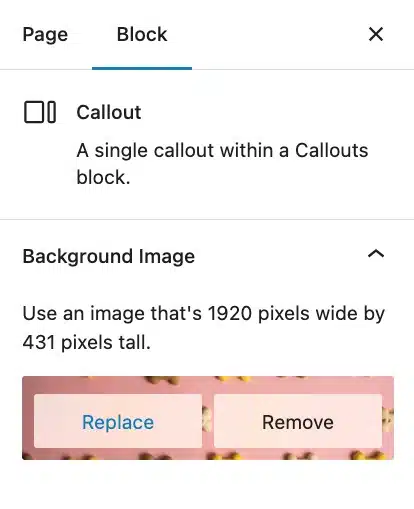
- If you choose a callout with center alignment, you have the option to display a background image. In the sidebar block settings under Background Image, click on “Set background image” or, if one is already set, hover over the current image and select either “Replace” or “Remove”
- If you choose to replace it, make sure to use an image that is 1920 pixels wide by 431 pixels tall.
Update the Image Callouts Block
This block allows you to display images with text in various layouts using three different alignment options: centered, right image and left image. You can move this block, delete it or add it to your homepage multiple times.
You can choose to have as few as one column (spanning full width) or as many as four. The number of columns you choose will impact the available alignment options. For example, an Image Callouts block with three or more callouts will only allow center alignment.
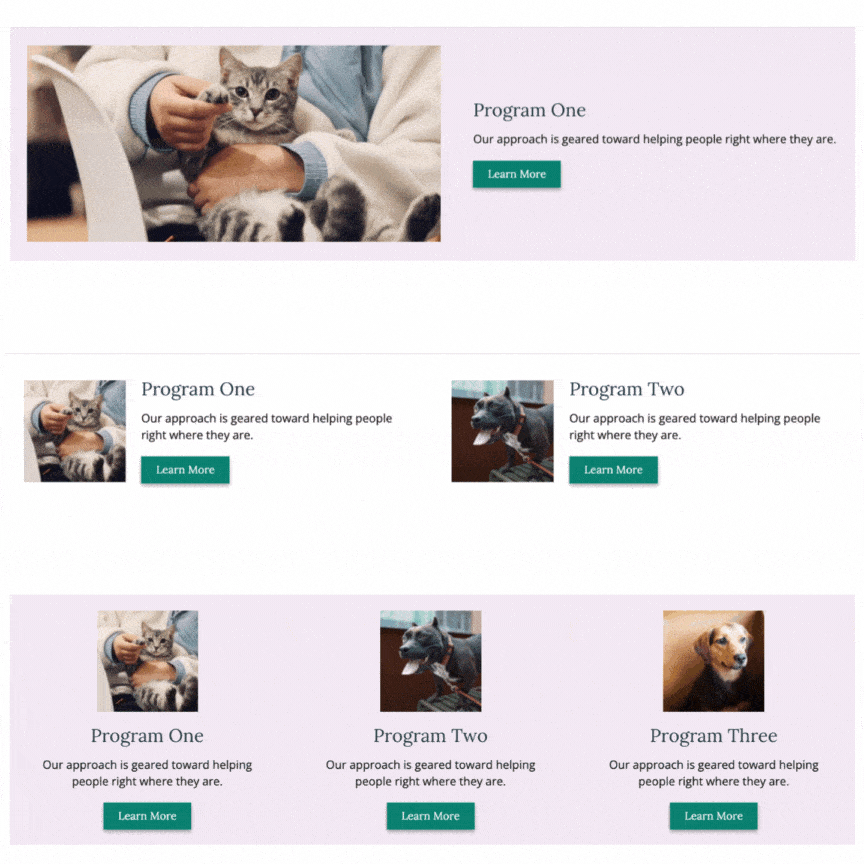
- Use the block inserter to add an Image Callouts block and select a layout that fits your needs.
- You’ll be able to choose from a variety of common layout options. If you don’t see one you’d like, you can click “Skip” at the bottom of the block and customize it later using the block toolbar.
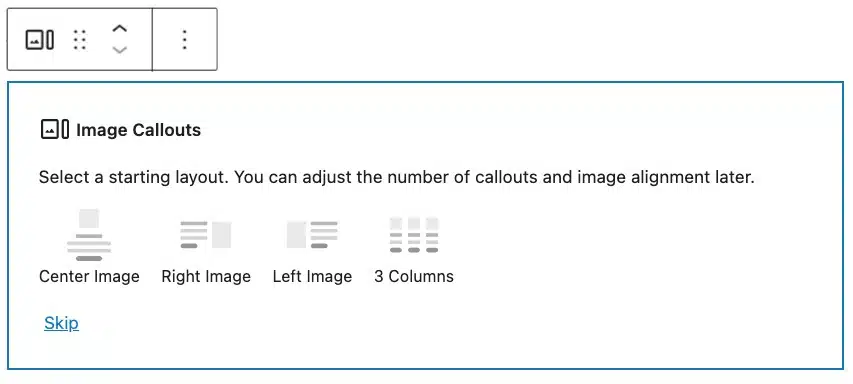
- Make sure the Image Callouts parent block is selected and use the slider under “Callouts” in the sidebar block settings to specify the number of columns.
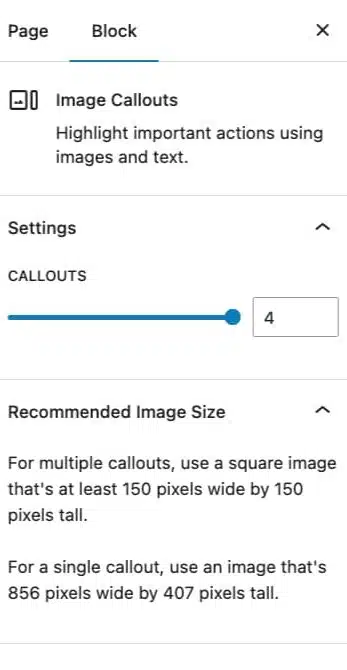
Once you determine the number of columns you’d like, you can customize each callout. To customize a callout:
- Select an image.
- The recommended image sizes will change depending on the number of callouts. For multiple callouts, use a square image that’s at least 150 pixels wide by 150 pixels tall. For a single callout, use an image that’s at least 856 pixels wide by 407 pixels tall.
- Add a brief heading.
- Add a short description.
- Customize the button text.
- If you don’t want the button to show up on the front end, just leave it empty.
- Add the URL of the page you’d like to link visitors to
- If you choose a single callout with center alignment, you have the option to display a background image. In the sidebar block settings under Background Image, click on “Set background image” or, if one is already set, hover over the current image and select either “Replace” or “Remove”
- If you choose to replace it, make sure to use an image that is 1920 pixels wide by 431 pixels tall.

To remove a column from the Image Callouts block:
- Select the column you’d like to remove.
- Click the three vertical dots within the block toolbar for more options
- Select “Delete”.
- Repeat as necessary.
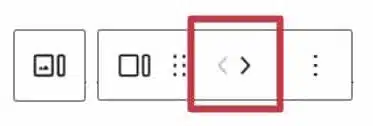
To rearrange the columns, use the toolbar’s left and right arrows.
Update the Text Callouts Block
Text Callouts are perfect for highlighting important information. While this block doesn’t allow for any media files like images, icons or videos, you can still rely on headings, descriptive text, and buttons to share your content. You can move this block, delete it or add it to your homepage multiple times.

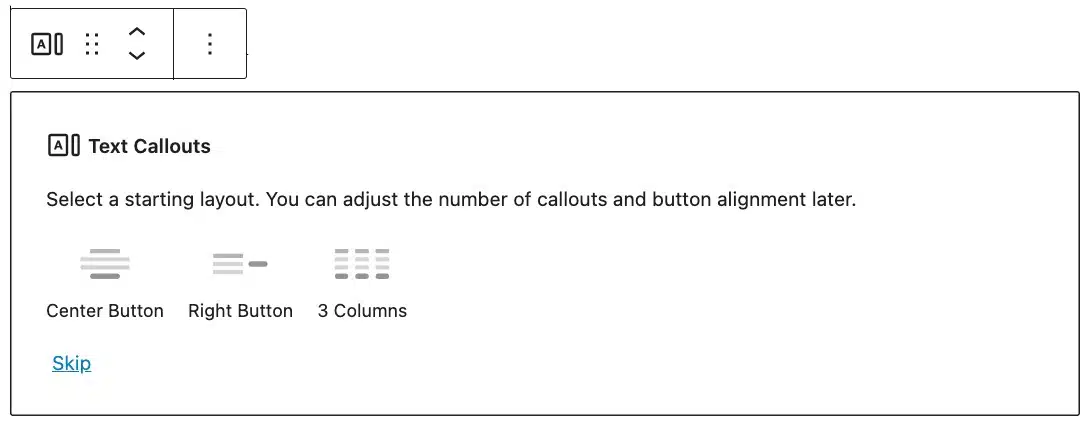
- Use the block inserter to add a Text Callouts block and select a layout that fits your needs.
- You’ll be able to choose from a variety of common layout options. If you don’t see one you’d like, you can click “Skip” at the bottom of the block and customize it later using the block toolbar.
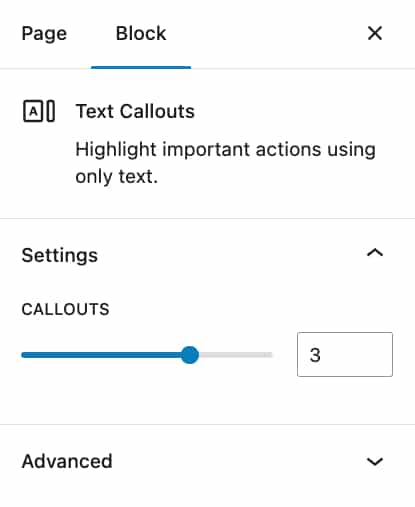
- Make sure the Text Callouts parent block is selected and use the slider under “Callouts” in the block settings to specify the number of columns.
Once you select your layout, you can customize each callout. To customize a callout:
- Add a brief heading.
- Add a short description.
- Customize the button text.
- If you don’t want the button to show up on the front end, just leave it empty.
- Add the URL of the page you’d like to link visitors to.
Update the Stacked Callout Block
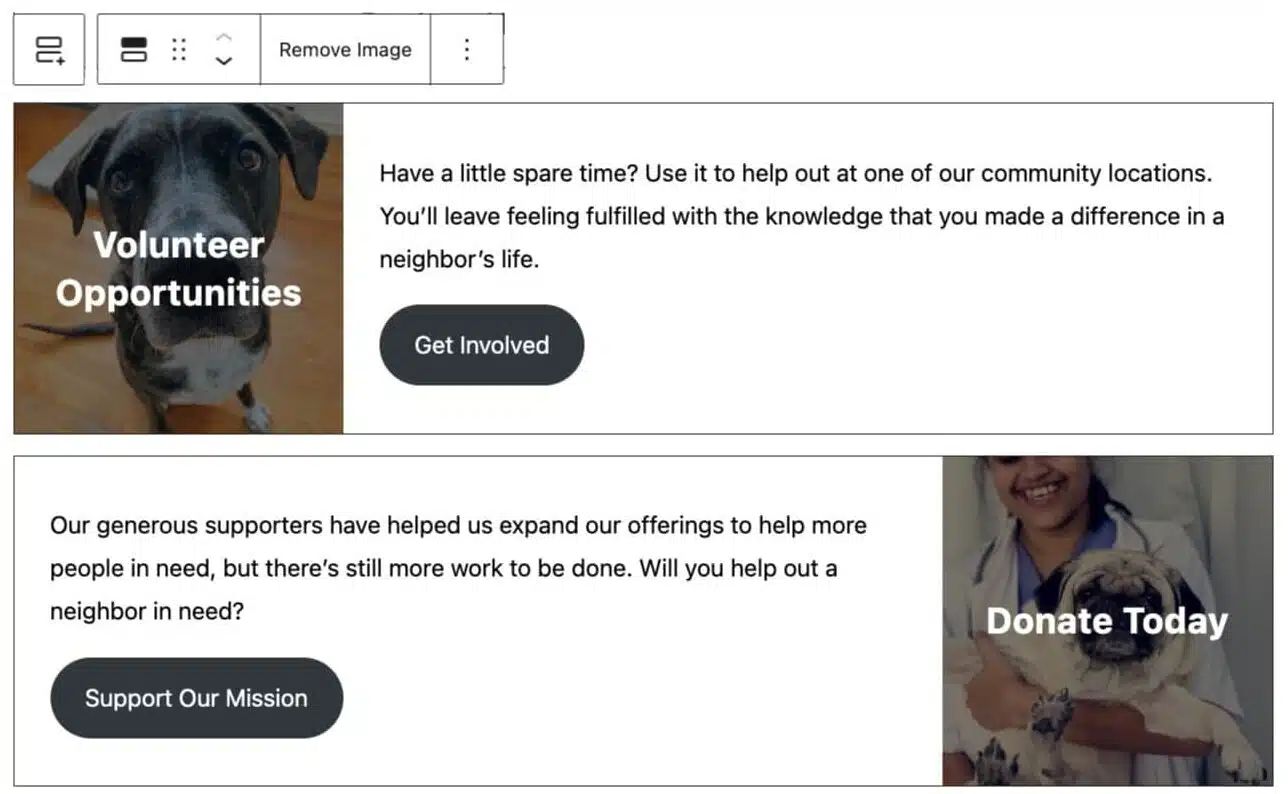
This block highlights important actions with alternating callouts and you can move this block, delete it or add it to your homepage multiple times.
To add these to your homepage:
- Use the block inserter to add a Stacked Callouts block.
- Make sure the Stacked Callouts parent block is selected and use the slider under “Callouts” in the sidebar block settings to specify the number of callouts. You can add up to 6 callouts.
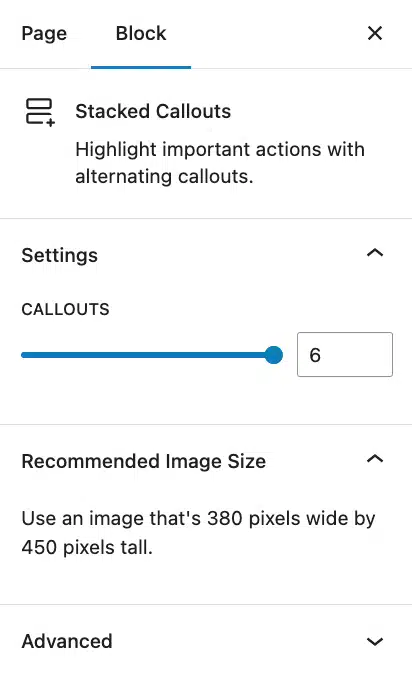
Once you determine the number of callouts you’d like, you can customize each of them. To customize a callout:
- Select an image with a minimum size of 380 pixels wide by 450 pixels tall.
- This image is optional.
- Add a brief heading.
- Add a short description.
- Customize the button text.
- If you don’t want the button to show up on the front end, just leave it empty.
- Add the URL of the page you’d like to link visitors to.
Update the Events Block
This block features your upcoming events and you can move this block or delete it, but it can’t be added more than once to your homepage.
FEATURE AVAILABILITY
The Event System is available for Grow and Amplify plan websites. Change your plan in the Account & Billing section of your website Dashboard.
As you publish new events, this block will automatically display the title, date time and excerpt of the next upcoming event on the homepage.
If you want to display a specific event, go to the sidebar block settings. In the “Featured Event” section, select the event you want to display. Once the featured event has passed, the next upcoming event will be shown again.
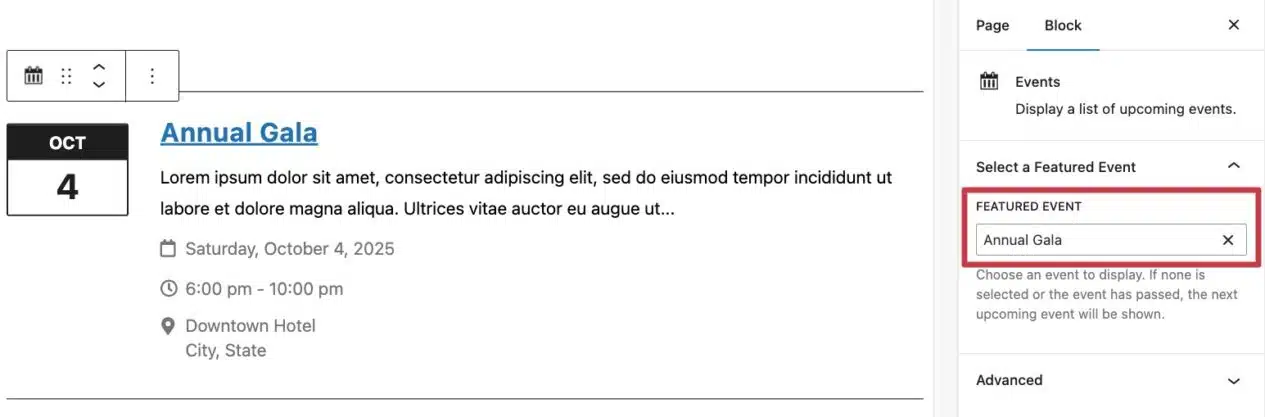
If you don’t have any upcoming events, this block won’t show on the front end of the homepage.
Update the Blog Posts Block
This block displays your most recent blog posts and you can move this block or delete it, but it can’t be added more than once to your homepage.
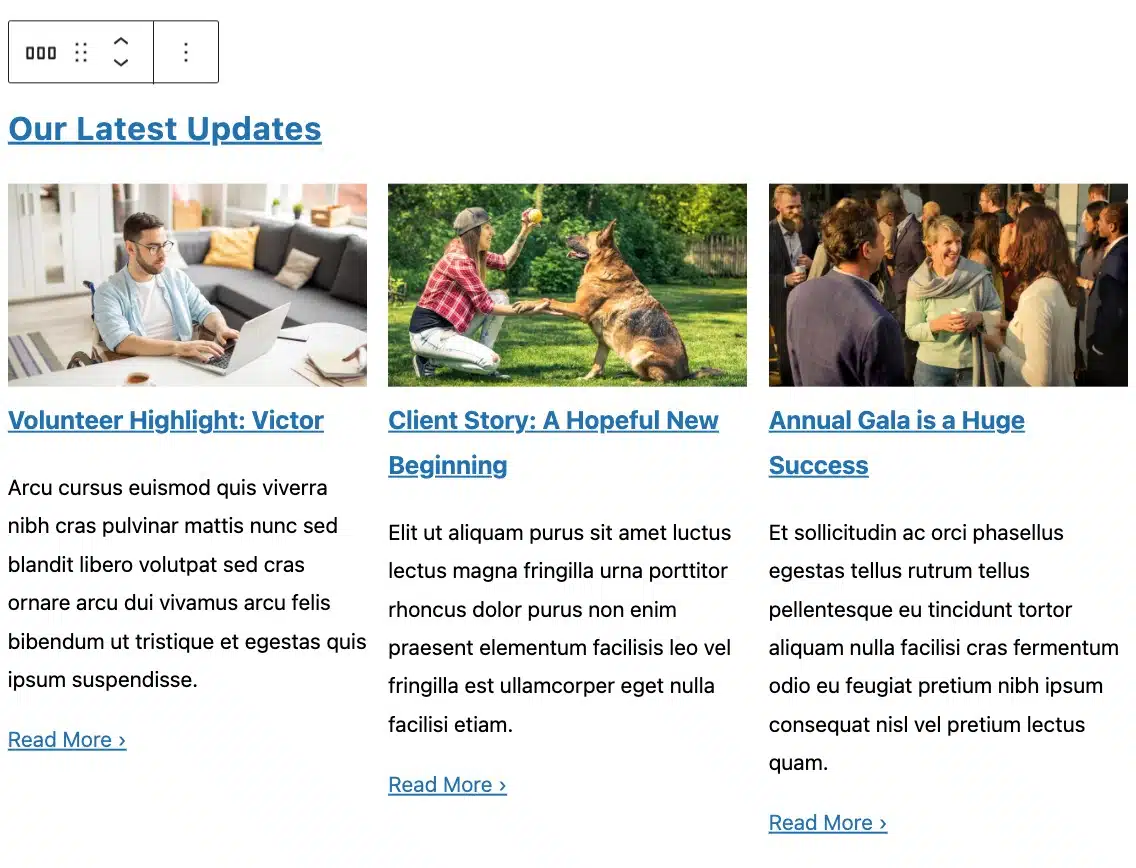
As you publish new posts, this block will automatically update to feature the latest ones.
This block uses “On the Blog” as the heading by default. You can customize this by selecting and editing the text.
Update the Newsletter Signup
If email marketing is a priority for your organization, this block allows you to display a form on your homepage for visitors to subscribe to emails. You can move this block or delete it, but it can’t be added more than once to your homepage.
- Use the block inserter to add a Newsletter Signup block.
- Keep in mind that you can add only one of these on your homepage.
- Add a brief heading.
- Add a short description.
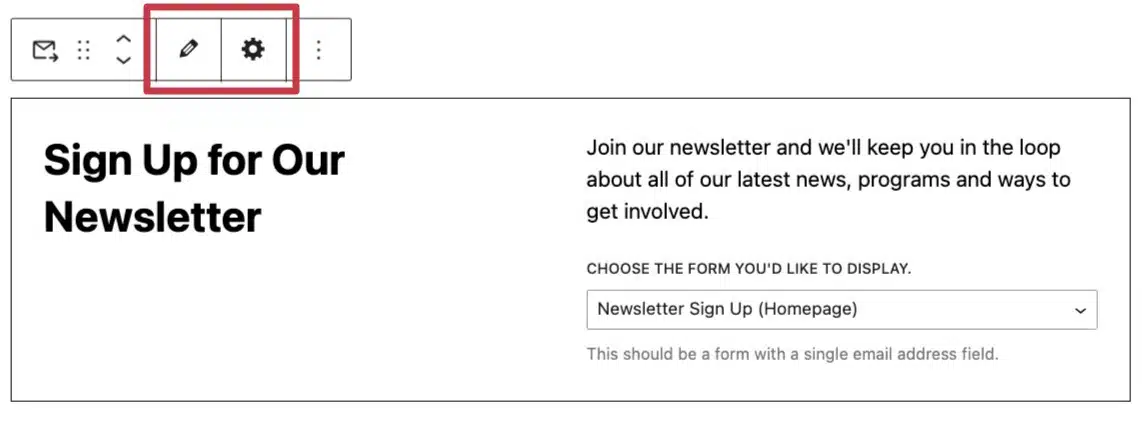
- Choose the form you’d like to display.
- We recommend displaying the Newsletter Sign Up (Homepage) form, which has a single email address field.
- You can also use the toolbar as a shortcut for quick actions:
- The pencil icon opens the selected form for editing.
- The cog icon links you to the form settings.
- If you’re on the Core plan, access to these shortcuts will not be available.
Update the Logos Block
This block allows you to display the logos of partners, supporters, sponsors or sister organizations directly on your homepage. You can highlight as many or as few as you’d like and you can also move this block, delete it or add it to your homepage multiple times.
To add logos to your homepage:
- First, use the block inserter to add a Logos block.
- Click on “Select Logo” and either upload the logo or select it from the Media Library.
- Make sure to use an image that’s at least 114 pixels tall.
- After you add your first logo, you’ll be able to add a brief heading.
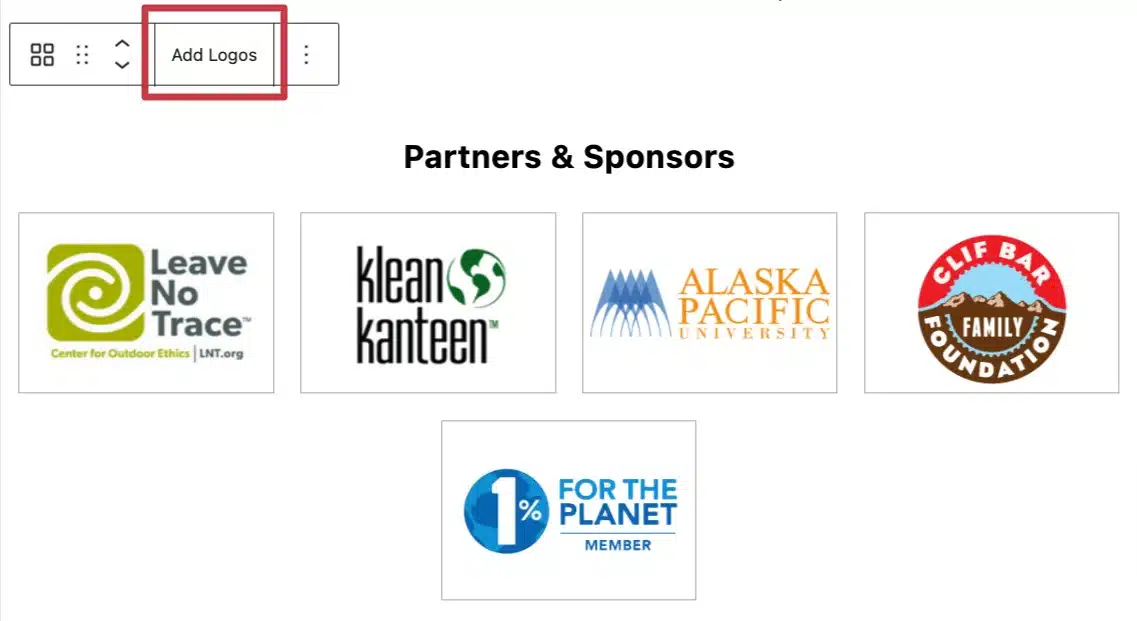
- Add more logos by clicking on the “Add Logos” button in the block toolbar.
- If you want the logo to link to another website, select the logo and click on the “Link” icon in the block toolbar. Paste in the URL and set it to open in a new tab.
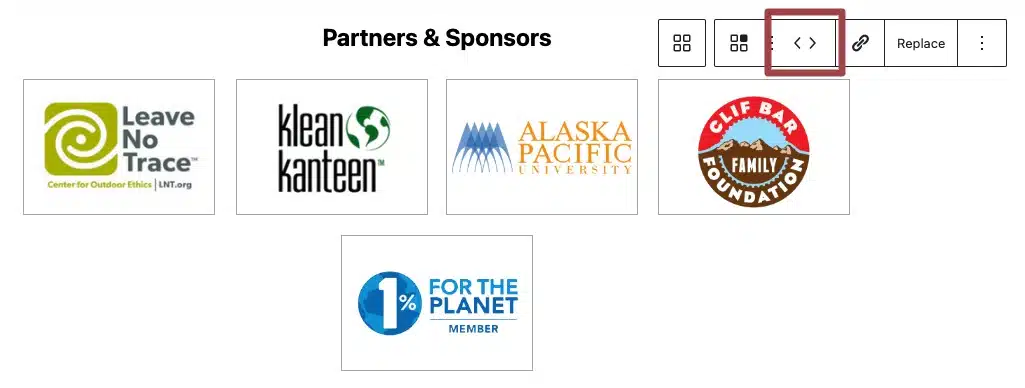
- To rearrange the logos, simply use the left and right arrows in the toolbar.
- To remove a logo, simply select the logo you want to remove, click the three vertical dots in the block toolbar to access more options and select “Delete.”
Moving and Deleting Blocks
It’s easy to customize the various elements of your homepage by reordering or removing blocks.
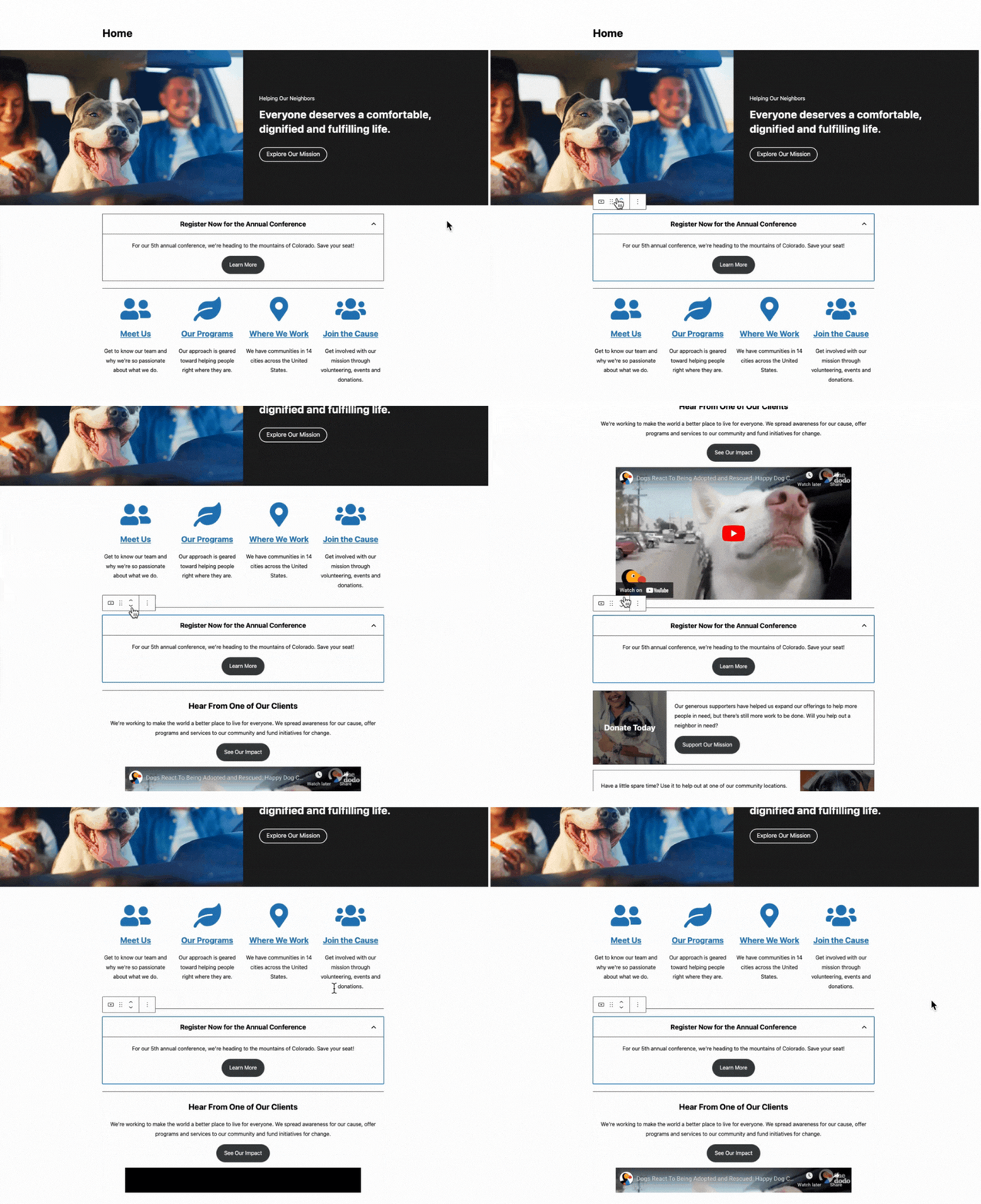
To move a block, simply select it and use the up and down arrows to move it where you’d like.
Another option to reorder blocks is to use the “Document Overview” button, which is located at the top left of the screen, next to the “Redo” button. There, you’ll see a List View of all the blocks on the page and can rearrange them through drag and drop.
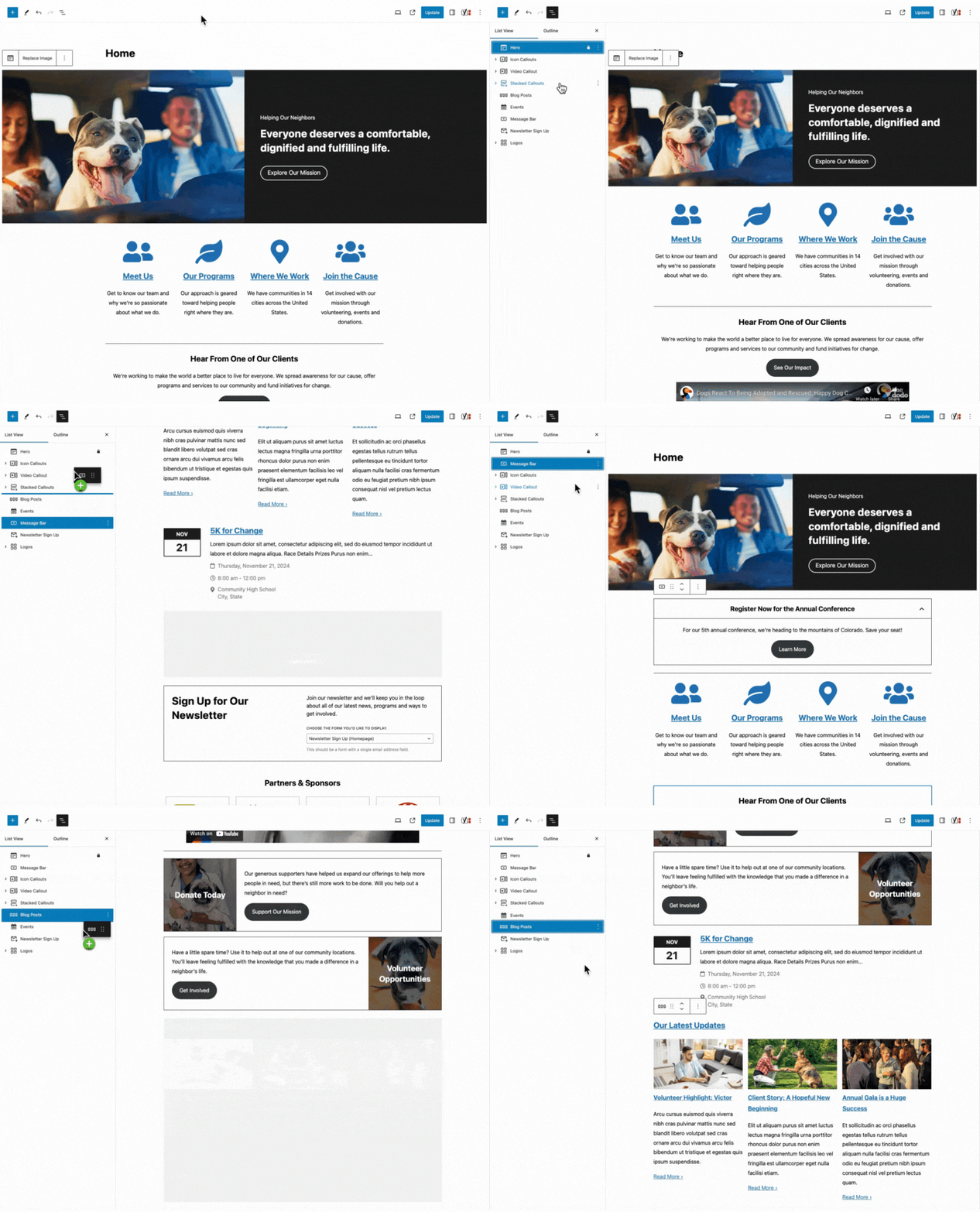
The only block that cannot be moved is the Hero block, as it is locked at the top of the homepage.
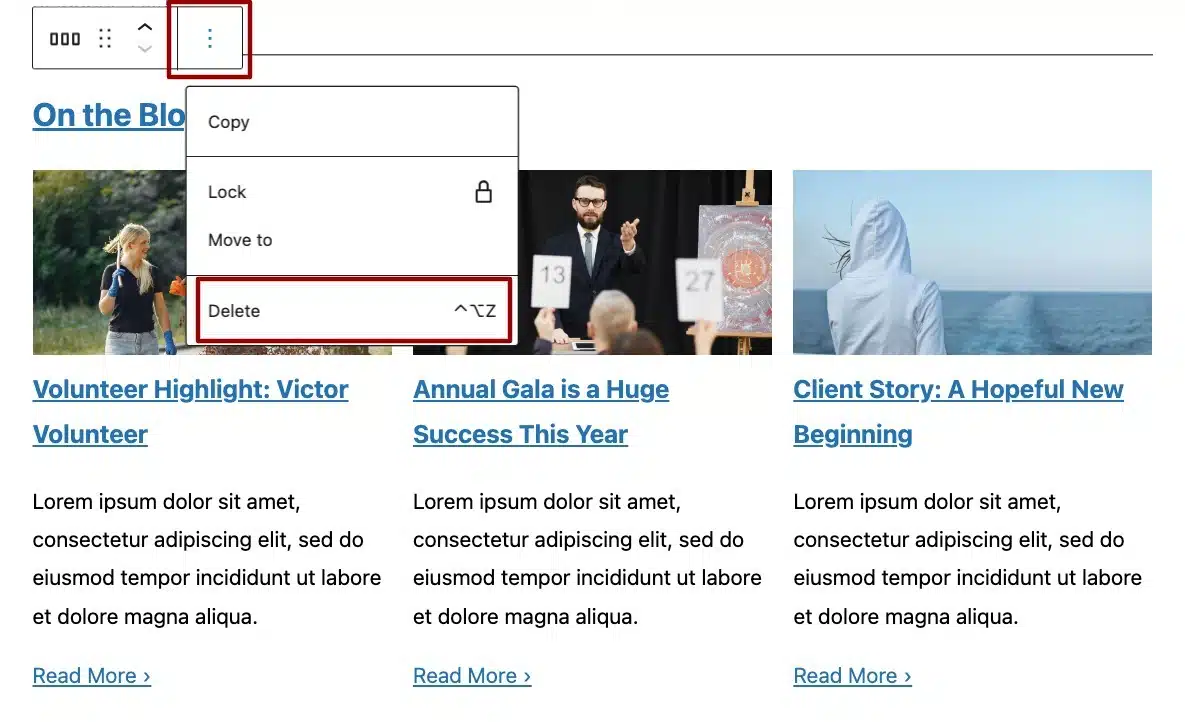
Once in a while, you might need to remove a block, which you can do in a few simple steps:
- Select the block you want to remove.
- Click the three vertical dots in the block toolbar to access more options.
- Select “Delete”.
- Repeat as necessary.
Preview
Before publishing your changes, it’s important to preview your homepage to make sure everything looks good.
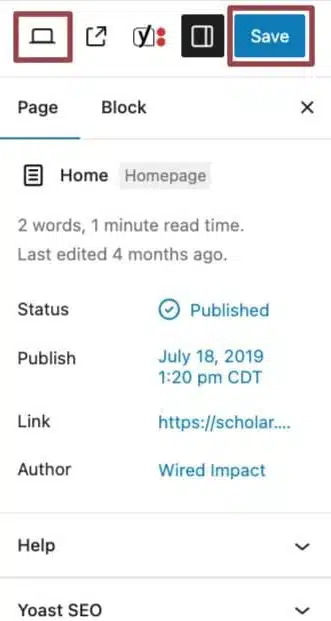
To do this, click the laptop icon in the top right corner of the editor and select “Preview in a new tab” from the menu. Take a moment to review your edits. If you’re happy with the changes, click the blue “Save” button to save them.
Still Have Questions?
The quickest way to get support is to reach out to us within your website’s admin dashboard. Log into your website and then fill out the Request Help form. You’ll hear back from us within one business day.