

If you know where to look, Google Analytics offers a variety of simple reports you can use right out of the box. But at some point, you’ll have a follow-up question that a default report can’t fully answer.
That’s where knowing how to filter your data in a more specific way can come in handy.
In this short video, I’ll walk you through how to use secondary dimensions to dig deeper and get more insights out of your default reports. No special setup or custom configuration required.
This video is one of several excerpts from our Nonprofit Website Office Hours on Google Analytics 4. You can also see the full recording on YouTube.
Video Transcript
This transcript has been lightly edited for clarity.
We’re going to show you how to level up reports using what are called secondary dimensions. Which I know sounds like a mouthful. It sounds very jargony.
But really, all we’re talking about is layering on an additional way of slicing up or subdividing your data a little further.
Essentially, a secondary dimension is just an additional attribute added to a report used to break down primary data in a more specific, actionable way to hopefully glean additional insights.
I’ll show you quickly how that works. We’re not going to dive too deep into this, but this is one area I love nerding out on when I get into analytics, and I do find it really useful.
We are in our traffic acquisition report, and these are the channels that we’re showing up. Let’s say we want to drill into referrals.
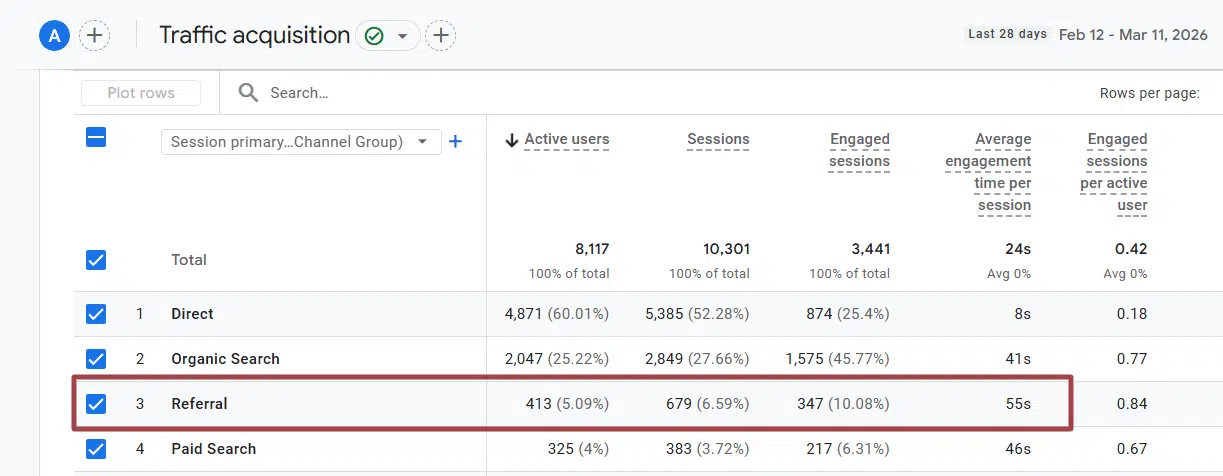
We want to see which websites are referring traffic to us. And what does the engagement look like for the different folks that are sending traffic our way? Who is actually referring visitors to our site?
Instead of building a custom report, which Google wants you to do in the Explore tab — which is a conversation for another day — we can layer on what’s called a secondary dimension and start to slice that information up.
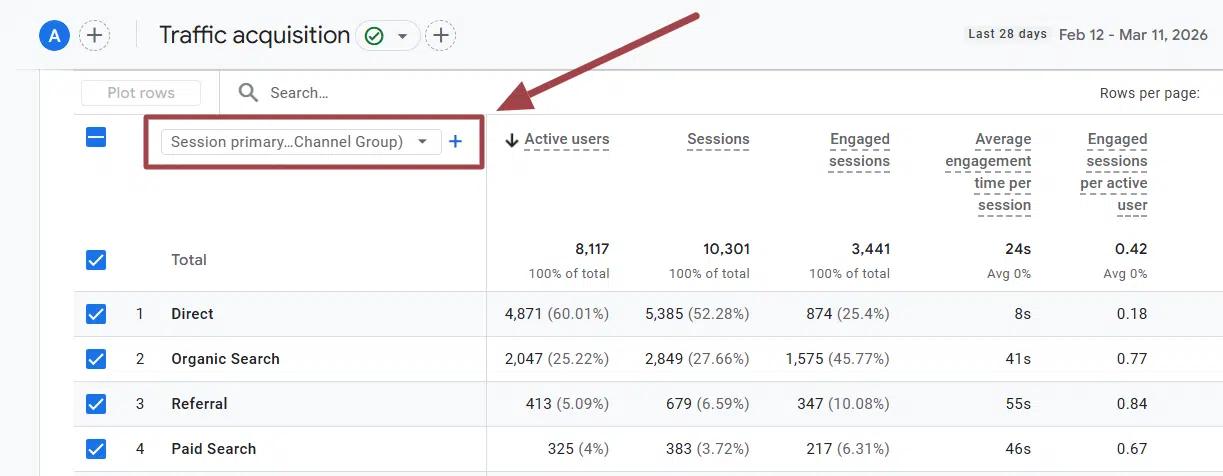
We’re going to look at this little plus sign next to the dropdown in order to add this in. I’ll show you in Google Analytics how this works.
I’m going to go back into Life cycle >> Acquisition >> Traffic acquisition. Again, this is demo data, so it’s not going to be as interesting as what you’ll find. We have 32 visits from referrals, just because people aren’t really linking to our demo sites from their sites.
But if we wanted to slice this up and drill into it more, we could click this plus sign. We’re going to type “Source” and this first one is the one we want.
It’s this one that says “Session scoped” over here, which is what we want. And then this right here says “Session source”. We’re going to click on that.

And you’ll see it layers on an additional kind of subdivision here. So direct traffic, there’s no source. It’s just direct. It doesn’t know what to do with that. But we can start to see organic search mostly coming from Google. And you can see the different referral ones.
If you want to layer on this search feature, you can come up here and type “Referral” into this. And if I hit enter, this will show me a filtered view of just my referral traffic.

Most of our referrals came from Google.com. We got some from Google Docs, some from our own website, from Asana. This is going to be a lot more interesting with your data!
But these are the two steps I would take: I would add this Session source secondary dimension, and then I would search by referral.
That’ll show you traffic that’s coming from the various referral sources, like different websites. A lot of the AI tools will be showing up here as well, so you’ll see things like ChatGPT showing up here if you’re getting traffic from LLMs.
Hopefully this helps make Google Analytics feel a little less daunting and helps you back up with data some of those things your gut is telling you about your website, your visitors and where you should be spending your time.
What You Should Do Now
01. Come to Nonprofit Website Office Hours
We cover a new topic every few weeks. Plus get a live answer to any website-related question you're wrestling with.
02. Book a Website Call
Find a time to discuss your nonprofit's website needs. Discover what's worked for other nonprofits like you and see how easy building your new site can be.
An interesting resource for anyone looking to get more from their analytics data. This makes GA4 reporting much easier to understand, uncovering deeper insights into user behavior and traffic performance. Thanks for these insights. Cheers!